 EffectCraft
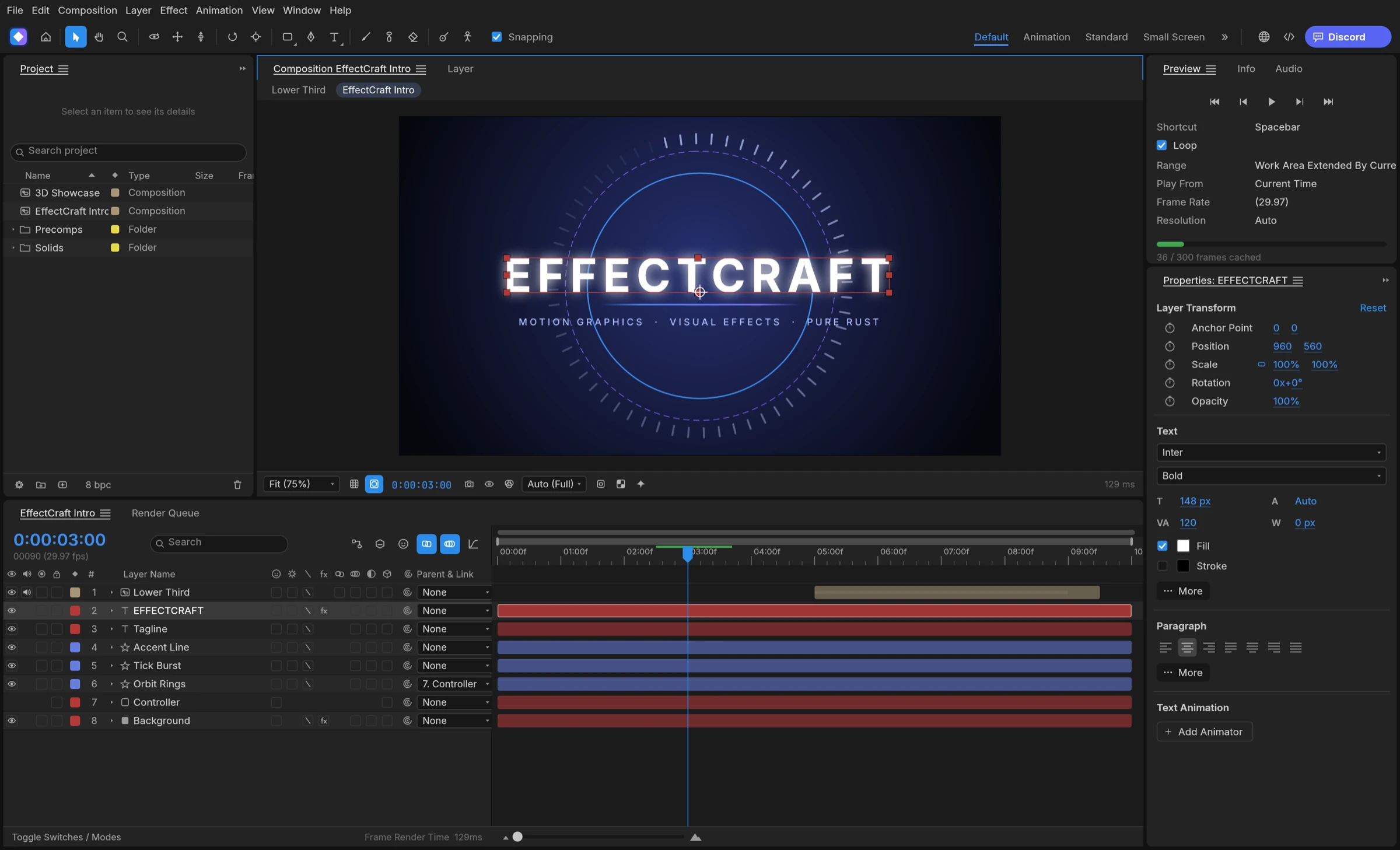

EffectCraft's Render Queue writes an animated GIF directly, so you don't need a plug-in or a separate converter. Add the composition to the queue, pick Animated GIF in Output Module, and render a .gif file.
GIF is one of the built-in outputs in free, open-source EffectCraft, next to H.264 MP4, ProRes MOV, HEVC, AV1, WebM, image sequences and audio formats.
Before you render: size and loop
Build at the size the GIF will be shown
A sticker for a chat app and a header for a README need different pixel sizes, and every extra pixel is stored in every frame. Build the composition at the display size, or close to it. If your working composition is larger, the Render Queue can crop and resize on output.
Set a work area that loops
Set the work area on the timeline around exactly one cycle of the motion, using markers to find the frame where it returns to its starting pose. Then check that the last frame leads cleanly into the first. If the loop is a retimed shot, here is how to build a slow-motion loop for a GIF.
Export an animated GIF from the Render Queue
- Add the composition to the Render Queue.
- Twirl the item open.
- Click Output Module and choose Animated GIF, which writes a .gif file. Its Loop Forever setting is on by default.
- Click Render Settings and set Time Span to Work Area Only, so only the loop renders.
- Choose where to save next to Output To.
- Check that the item's Render box is ticked, then click Render.
Open the result at the size people will see it and watch it loop a few times.
The project's web documentation says the browser build runs the same Render Queue, and its render outputs download instead of being saved to a folder. To render GIFs in the browser build too, you host that build yourself first.
Keep the GIF file size down
A GIF stores every frame as an image with a limited colour palette, so its file size grows with pixel dimensions, frame count and length. EffectCraft gives you three levers:
- Resolution: Render Settings offers Full, Half, Third and Quarter. Half is a sensible first test.
- Length: trim the work area to one clean cycle.
- Frame rate: if the motion still reads at a lower frame rate, build the composition at that rate. Fewer frames make a smaller file.
Use Quality: Draft for quick checks and Best for the final render. Output Module has no palette or dithering choice for GIF, so the levers above are the ones to work with.
When a GIF is the wrong format
Transparency
GIF transparency is all or nothing for each pixel, so soft edges and shadows lose their fade. When the animation has to sit over changing backgrounds, render transparent WebM or ProRes instead of GIF: "Channels: RGB + Alpha" is there for QuickTime (ProRes), QuickTime (Uncompressed) and PNG Sequence, and the README says WebM with VP9 carries alpha.
Websites and apps
For interface animation, Lottie export writes a composition as .json or .lottie and lists anything Lottie cannot express. Consider a Lottie file for websites and apps before settling on a GIF.
Gradients and footage
Smooth gradients, soft shadows and filmed footage suffer most from the GIF palette. When they matter, an H.264 MP4 or WebM render avoids the palette altogether.
Render a short test loop at Half resolution, open the .gif, and check both the file size and the jump from the last frame to the first before you render at full size.