 EffectCraft
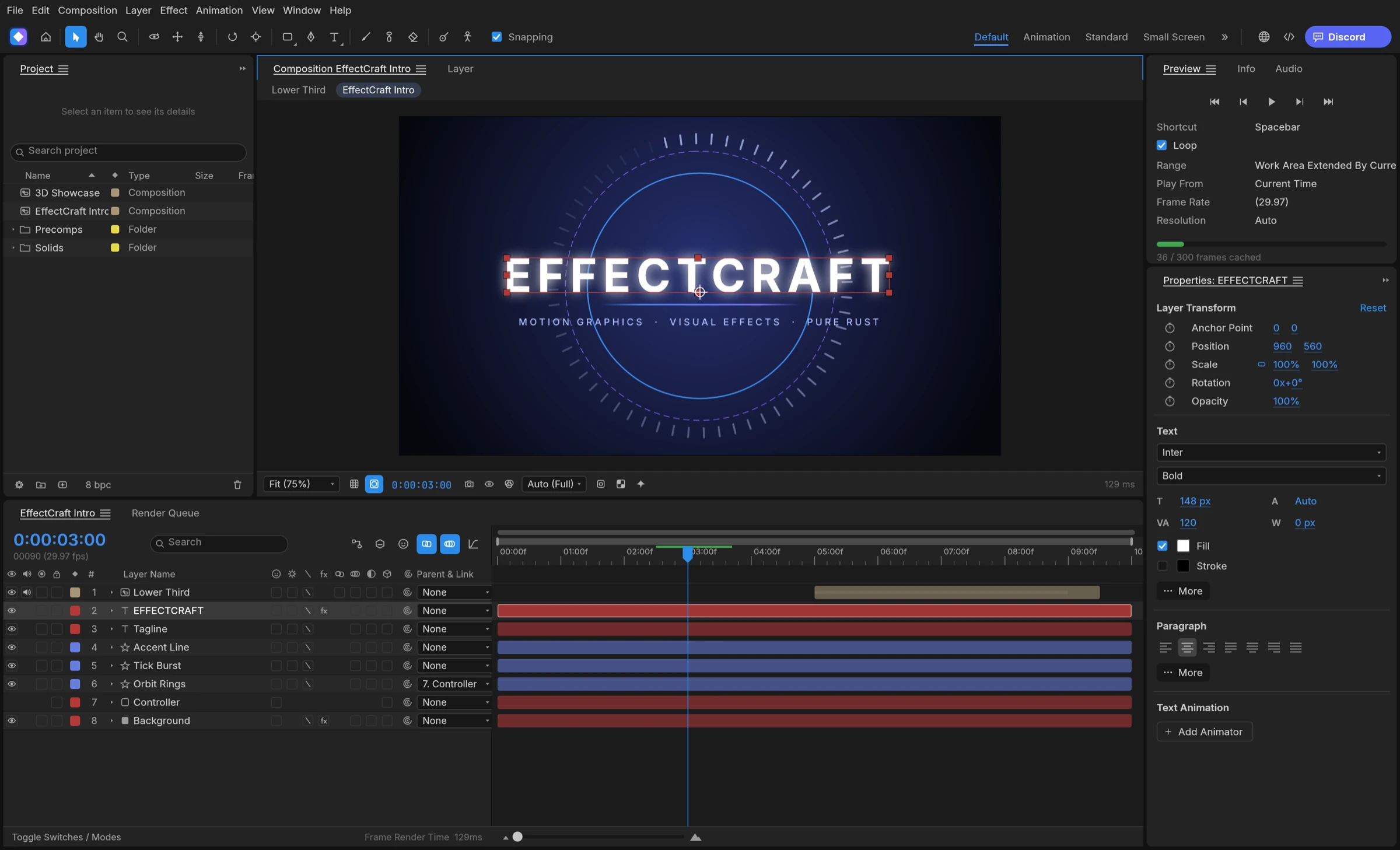

You can't open EffectCraft online at a public address the way you would a hosted editor, because the project runs no such service. What it ships instead is a web build: a zip you put on any static server and then open in a browser, with the same engine and interface as the desktop app.
For what the app itself can do, start with the EffectCraft overview.
What "EffectCraft online" means today
Each GitHub release includes a file named effectcraft-web-<version>.zip. Inside is a static site with no server-side code. The project's EffectCraft page on getartcraft.com calls it "The WebAssembly app, to host yourself.", and the README says the web build "runs the full app in the browser" (README). It starts on WebGPU and falls back to WebGL2 (docs/web.md).
app.getartcraft.com is a different product
The "Use on web" link on that same getartcraft.com page opens app.getartcraft.com. That is ArtCraft, the team's AI image and video studio, not EffectCraft. If you clicked it expecting a timeline and a Render Queue, this is why you didn't find one.
Host the EffectCraft web build
There is nothing to run on the server. Upload the contents of the unzipped folder to anything that serves static files, at a domain root or under a sub-path (hosting notes). Then:
- Get the zip from the latest release; the download guide shows where to get the web build zip.
- Unzip it and upload the folder's contents to your static host.
- Serve
.wasmfiles asapplication/wasm. - Turn on gzip or Brotli compression.
- Serve the site over https://. WebGPU only works in a secure context, meaning https:// or http://localhost; over plain HTTP anywhere else, the app falls back to WebGL2.
No special cross-origin isolation headers are needed.
Test it on your own machine first
Inside the unzipped folder, run python3 -m http.server 8765, then open http://localhost:8765/. Localhost counts as a secure context, so WebGPU is available there if your browser supports it.
Speed depends on that: on WebGL2, or without a usable graphics adapter, everything renders on the CPU, which is slower.
Where your projects and renders go
The EffectCraft web build keeps projects, media, settings and renders in the browser's private storage on your own machine. The documentation is blunt about it: "Nothing is uploaded anywhere" (docs/web.md).
- The browser's Origin Private File System is used first, IndexedDB where that can't be written (older Safari), and memory only when neither works (some private windows).
- Saving a project also downloads its .ecproj file.
- Renders are written to browser storage and download when the render finishes.
In a private window that has fallen back to memory, that downloaded .ecproj is the copy to keep.
Browser build or desktop app
The browser build suits a class, a locked-down PC where you can't install software, or a team that wants one shared, self-hosted address. The desktop app suits work that depends on the fonts installed on your computer or on a graphics card the browser can't use.
Fonts
The web build does not scan the fonts installed on your computer. The fonts it ships with are three bundled families: Inter, Noto Serif and JetBrains Mono. For Hangul titles, see Korean text in the browser build, a guide written in Korean.
Graphics and phones
On Android, an open issue reports that the web build fails to start on phones whose graphics adapter offers a smaller maximum texture size than the app asks for. The guide to EffectCraft on phones and tablets covers what that means on a phone.
Once the app is running in a desktop browser, you can follow the beginner steps in a browser: the panels are the same ones the desktop app uses.
Download effectcraft-web-<version>.zip from the latest release, run the local test above, and open a short project there before you put the files on a shared server.