 EffectCraft
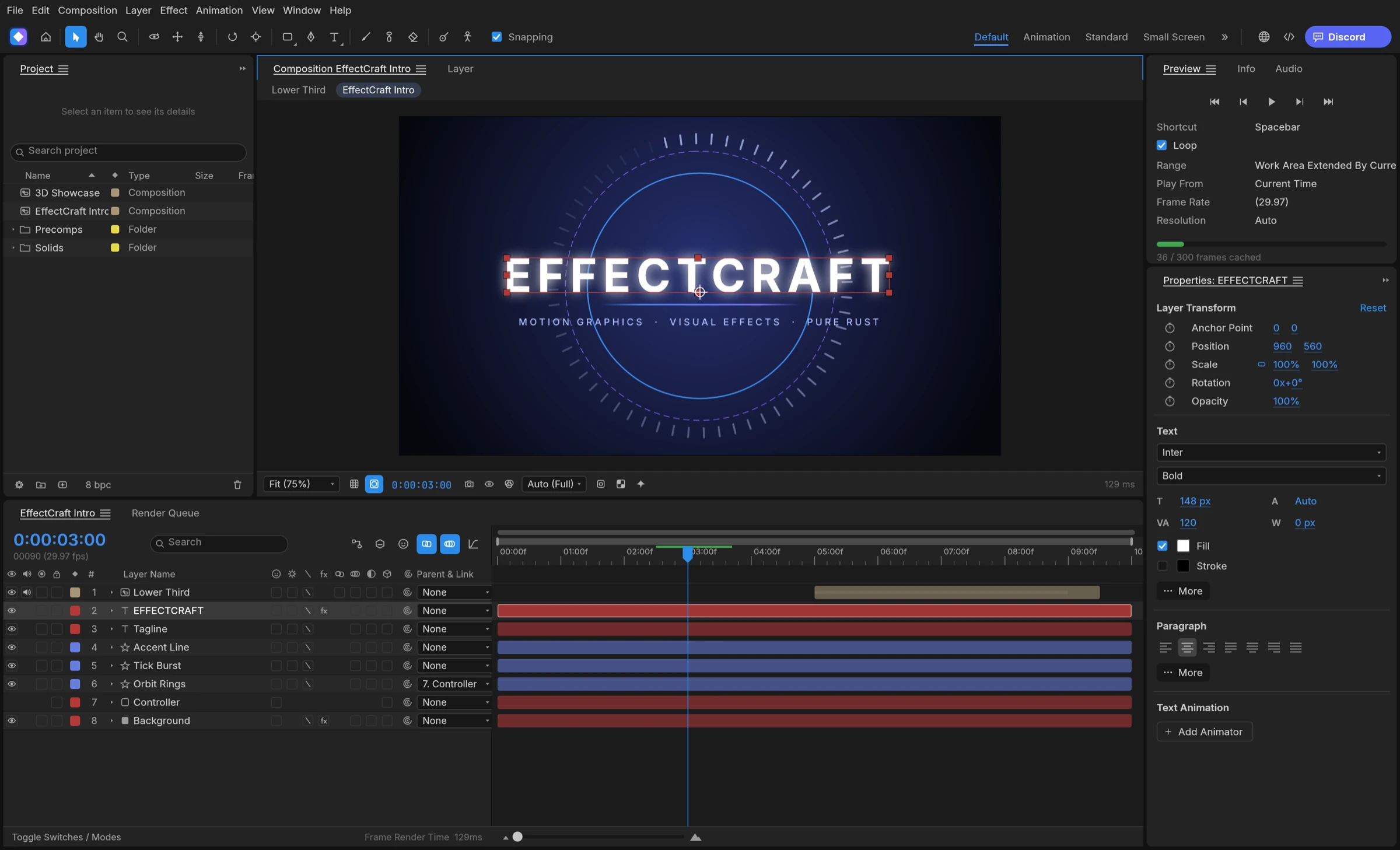

To make a speed ramp in EffectCraft, enable time remapping on the clip, key the start and end of the ramp on Time Remap, then shape the change in the Graph Editor's speed graph. The same tools handle freeze frames and reverse playback in the same edit.
For the rest of the app, see EffectCraft at a glance.
Pick the moment and the footage
A speed ramp reads best when it lands on an action beat: the board leaving the ground, a head turning, a door slamming shut. Put a marker on that frame before you touch any keys.
The footage decides how far you can slow down. Slow motion looks smoother from footage shot at a higher frame rate than your timeline. Slow ordinary footage far below its recorded rate and you will see repeated frames, unless they are blended or interpolated.
Turn on time remapping and key the ramp
EffectCraft has time remapping, time stretch, time-reverse and freeze frame, with frame-accurate timing at every frame rate, including 29.97 drop-frame.
- Select the clip in the Timeline and enable time remapping on it.
- Press R twice quickly (RR) to reveal Time Remap.
- Add a Time Remap key where the ramp begins, one where the slow section starts, one where it ends, and one where normal speed returns.
- For the slow section, space its two keys further apart on the timeline than the stretch of source time they cover. Bring keys closer together to speed up.
- Play it back and nudge the keys until the slow part sits on your marker.
Bringing a ramp over from After Effects instead? See time remapping from an imported .aep.
Shape the ramp in the speed graph
Open the Graph Editor. It starts on Auto-Select Graph Type; choose Speed to see the rate of change directly, which also turns Auto-Select off.
- Select the keys around the slow section and press F9 for Easy Ease.
- Drag the handles. A steep drop in the curve is a hard brake; a long slope is a gradual one.
- For exact values, open the Keyframe Velocity dialog. The Interpolation dialog switches keys between linear, Bezier, hold, auto and continuous Bezier.
If the graph itself is unfamiliar, start with Graph Editor basics in the tutorial.
Smooth the slow motion: frame blending and Timewarp
When the slow section shows repeated frames, turn on frame blending for the layer in the Switches column, next to motion blur. The project lists frame blending with optical flow among its render features.
The Timewarp effect is the other route. It builds frames in three ways: Whole Frames, Frame Mix and Pixel Motion. Try each on the slow section and keep whichever holds up best on your shot. Pixel Motion Blur, Echo and Posterize Time sit alongside it in the time effects if you want a stylised look instead.
Render a short work area around the slow section after each change; judging retimed motion in a stalled preview is guesswork.
Freeze frames, reverse and other timing tricks
- Freeze: hold the peak of the action for a beat before the ramp picks up again. Freeze frame is one of EffectCraft's listed time tools.
- Reverse: time-reverse plays the layer backwards, which suits a move that snaps back to where it started.
- Constant change: when the whole clip only needs to be faster or slower, time stretch is simpler than a ramp.
A short ramp also makes a good loop: you can export the ramp as an animated GIF.
Render a short work-area test around the action, step through the slow section for repeated frames, and only then render the full clip.